On your Desktop, Start >> Settings >> Apps >> Apps & Features >> Optional features >> Add feature
Look for RSAT: Active Directory Domain Services and Lightweight Directory Services Tool
-
UiPath
Show all posts related to UiPath
-
Windows
Show all posts related to Windows
-
Web Design
Show all posts related to Web Design
How to install Active Directory on Windows 10
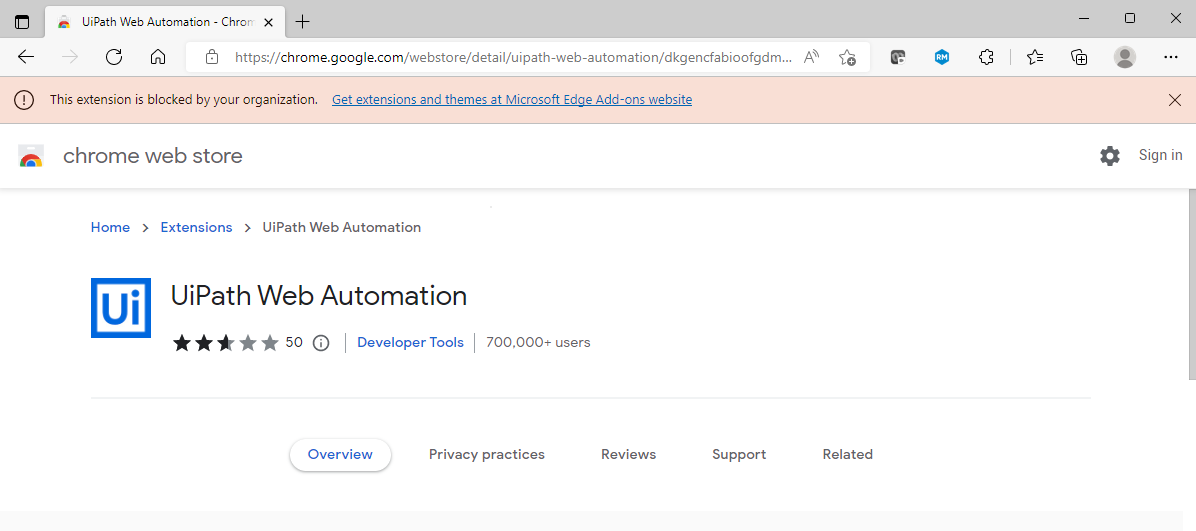
How to install UiPath extension on MS Edge
This is the easiest way for me. Since Microsoft Edge is Chromium-based, it supports the same extension used by your Google Chrome browser.
So the UiPath Web Automation Chrome extension should work:
https://chrome.google.com/webstore/detail/uipath-web-automation/dkgencfabioofgdmhhjljpkbbchbikbh
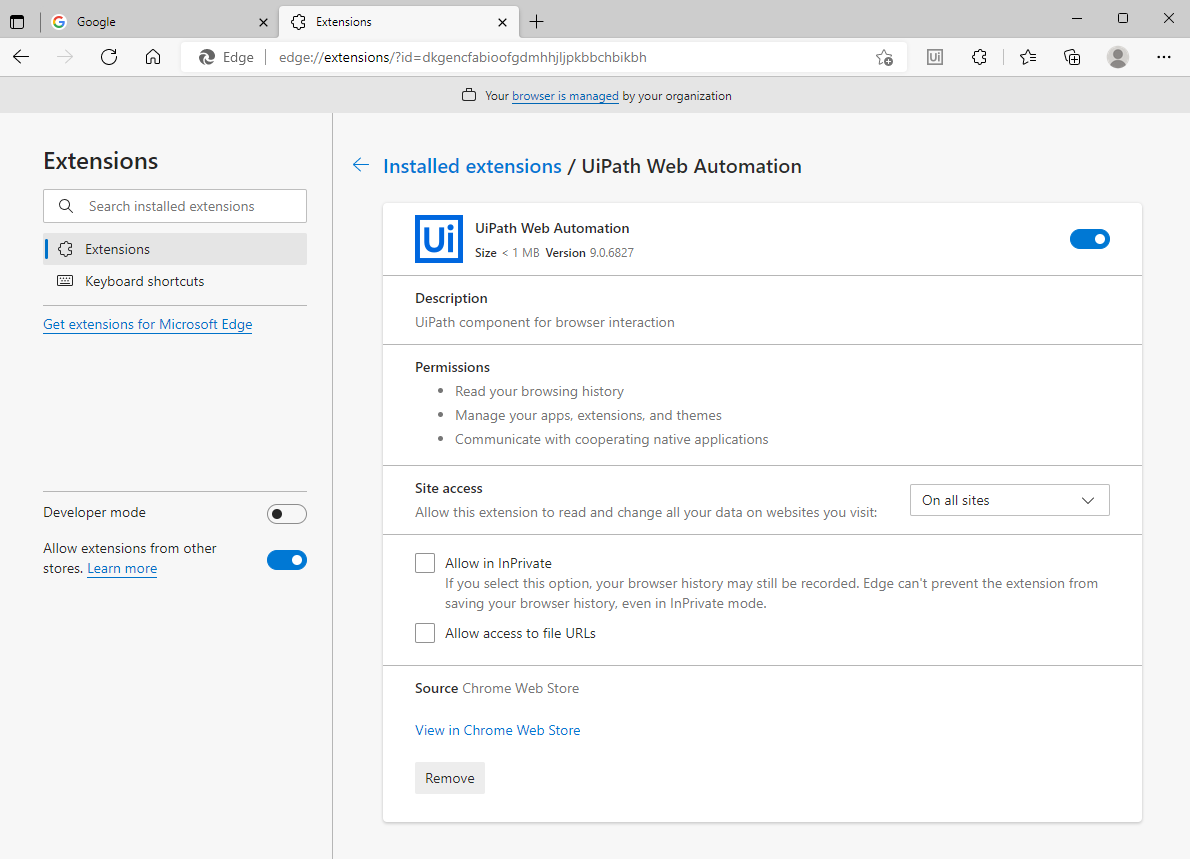
What you should do is open the extension URL and install it straight on your Edge browser. With this you don't need to install through UiPath studio or even the command line anymore. This is all you need.
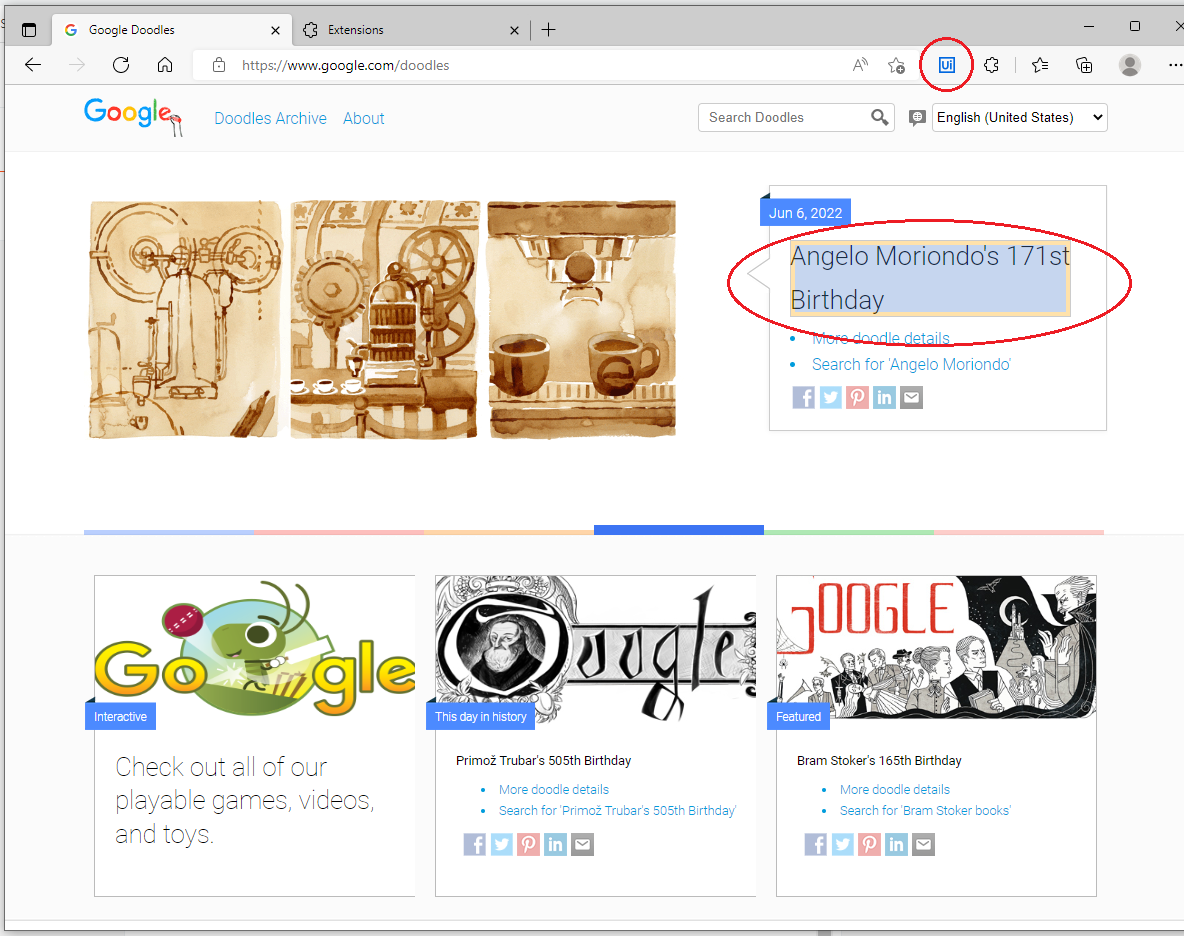
After installation, enable it on the browser and you should now be able to identify objects on MS Edge.
How to edit hosts file in Windows 10
Might come in handy!
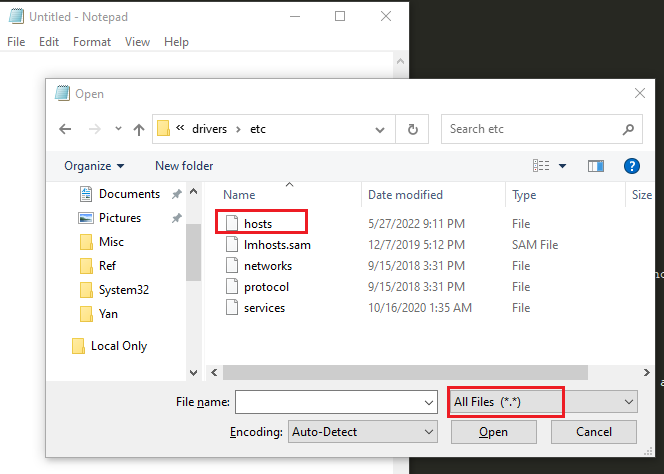
1. Run Notepad as Administrator (right click > Run as Admin)
3. Add the IP and hostname on the last line then save. In this case I added two hosts for surfandperf and google. You may read the commented part for more details.
[UiPath] How to launch a folder using Start Process activity
For when you want to launch a file folder for quick access after the robot runs.
Using the Start Process activity, put "explorer.exe" under Input FileName, and your desired folder path unde Arguments.
How to setup Eggplant Functional Studio with RLM License Manager and TightVNC on Windows
Heya! Quick note on how to setup and install Eggplant Studio on Windows
What you need:
- Eggplant Functional installer
- Eggplant license file
- RLM installer
- Under Supporting Installers at https://www.eggplantsoftware.com/eggplant-functional-downloads
- TightVNC remote desktop server
Step 1: Install Eggplant Functional
This one's pretty straightforward, just launch the installer and follow the next steps on there.
Step 2: Download your license file
If you don't have the license file you can download it from your Greenhouse account here http://greenhouse.eggplant.io
Step 3: Setup RLM license manager
Extract the contents of your RLM download (it will be a zipped file)
To start the service: Open Task Manager >> Services tab >> Look for RLM and start it
How to write logs with newline using IO.write in Ajax Truclient
Suppose you want to create your own log file, here's how to do that in Ajax Truclient using the Evaluate Javascript action from the Toolbox.
So, drag it onto your script, make sure it's inside an Action and not in vuser_init or vuser_end. It didn't work when I initially placed it inside vuser_init and I'm not sure why.
IO.write(filename[string], input[string], append[boolean], charset[string]);
var currentDate = new Date();IO.write("C:\\Data\\Logs\\logs.txt",currentDate.toLocaleString() + " >>> ",true,"UTF-8");IO.write("C:\\Data\\Logs\\logs.txt","hello",true,"UTF-8");IO.write("C:\\Data\\Logs\\logs.txt","\r\n",true,"UTF-8");
- On line 1 I created a date variable
- On line 2 I used toLocaleString() method to output the date time in a readable format based on the machine's default locale. In my case it's en-US. You can add parameters to this to specify a different locale. Also, make sure to escape the slashes on the path.
- On line 3 I appended my log message which says hello
- On line 4 I appended a carriage return and a newline using \r\n because sometimes \n alone doesn't work
Running it 3x produces this output. Note that it automatically creates the file if it doesn't exist BUT it doesn't create directories.
How to use isRegExpMatch descriptor on Ajax Truclient
For example you are waiting for an object with a message like
"6 card(s) processed successfully."
where 6 could be any number. Here's how to use isRegExpMatch descriptor to identify that object.
First, change the ID method of the object to Descriptors and open the Descriptors Editor.
When using isRegExpMatch, make sure the value type is set to JS.
/(.*) card\(s\) processed successfully./g
There are other variations to this, but this is what worked for me hehe.
When entering the regex value back on the descriptors editor, make sure to include the open and close slashes and the g modifier at the end (in red).
If you notice, the parentheses in (s) are also escaped (in green).
You can always test the descriptor by highlighting the object when it's visible on the page.
Here's another example:
Say you want to match an object with a name like this, where there's a random alphanumeric element in between the path...
/objects/ProfDetTransfer/rows/2g6efbadc10f2d3aaf4d06e1e2307as/attributes/TargetMatterRel.DisplayName
Same thing! Pull up a regex editor..
- replace the dynamic parts with a capturing group
- escape the forward slashes
- enclose the pattern in slashes
- add a g modifier
Here's the expression for that:
\/objects\/ProfDetTransfer\/rows\/(.*)\/attributes\/TargetMatterRel.DisplayName