A repository of notes about Performance Testing, Automation, RPA, and Web Design.

  • UiPath

    Show all posts related to UiPath

  • Windows

    Show all posts related to Windows

  • Web Design

    Show all posts related to Web Design

Showing posts with label UIPath. Show all posts

[UiPath] How to use variable as delay duration (convert String to TimeSpan)

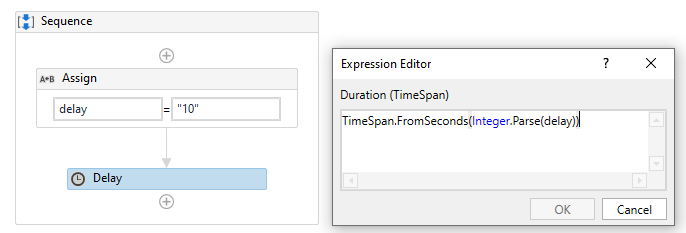
Say you want to use a variable as delay duration instead of hardcoding the time span (ie. 00:00:05), how do you convert a string variable into a proper duration variable?


Duration field accepts values with data type TimeSpan.
To convert a String to TimeSpan, use...

 TimeSpan.FromSeconds(Integer.Parse(delay))

...where delay is a string variable containing the delay duration in seconds. In this example, it's 10 seconds. 

That's it! Hope this helps! 

Share:

[UiPath, VB.net] How to split string into characters

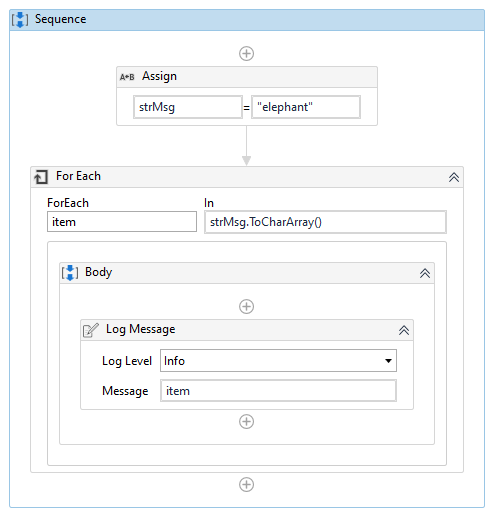
I was looking for ways to split a string into characters and found this .net string method that works perfectly.

Say you want to split the word elephant into individual characters and display it, just use the method ToCharArray() and it will be converted the way you want it!


Take note to change the TypeArgument of the For Each loop to System.Char

Alternatively, you may also access each character in the string by its index number.

"elephant"(0) returns "e"
"elephant"(1) returns "l"
"elephant"(2) returns "e"
...
"elephant"(7) returns "t"


You get the drill!

Share:

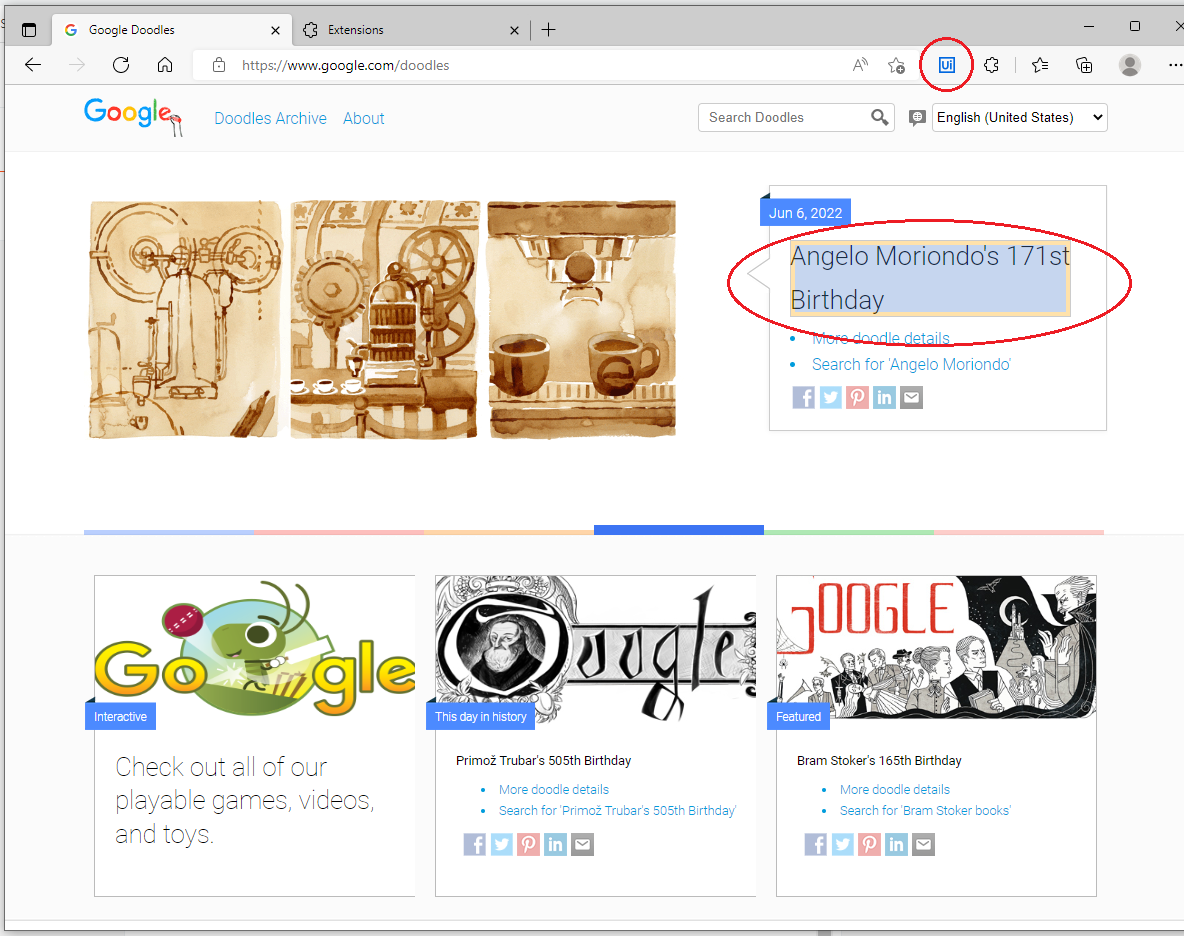
How to install UiPath extension on MS Edge

This is the easiest way for me. Since Microsoft Edge is Chromium-based, it supports the same extension used by your Google Chrome browser. 

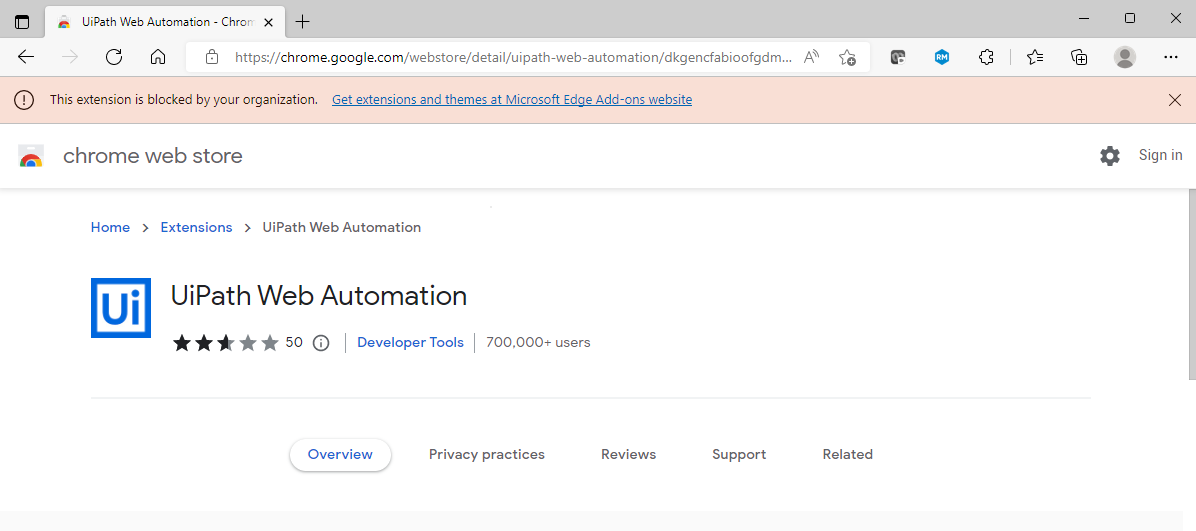
So the UiPath Web Automation Chrome extension should work:
https://chrome.google.com/webstore/detail/uipath-web-automation/dkgencfabioofgdmhhjljpkbbchbikbh


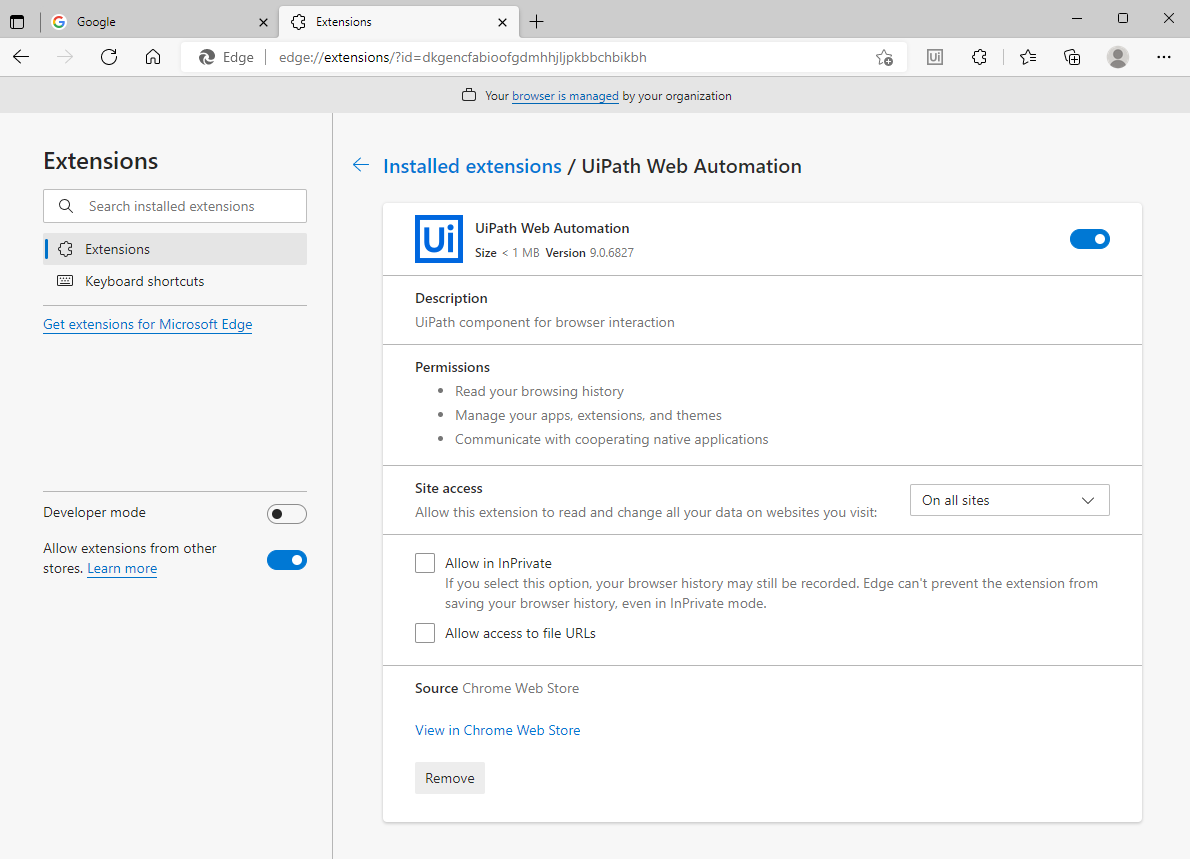
What you should do is open the extension URL and install it straight on your Edge browser. With this you don't need to install through UiPath studio or even the command line anymore. This is all you need.


Issues may arise if you're working within an oganization which blocks installation of unverified extensions. In such cases, you have to reach out to your Service Desk or Desktop Engineering team and get the clearance needed to have the extension whitelisted.

After installation, enable it on the browser and you should now be able to identify objects on MS Edge.


Hope his helps!

Share:

[UiPath] How to launch a folder using Start Process activity

For when you want to launch a file folder for quick access after the robot runs.

Using the Start Process activity, put "explorer.exe" under Input FileName, and your desired folder path unde Arguments.


That's it!


Share:

[UIPath] "You have exceeded your profile storage space..." Error when running on Windows Server

Here's something we encountered recently that kept us from running a task smoothly. We migrated our scripts to a virtual server machine which is very different from where we developed the script (desktop). Our first struggle was getting rid of this pesky profile storage space error that kept on popping up midway into running a task.


Turns out when you run a robot, it extracts the robot package and downloads all its dependencies on a dedicated folder inside the local user profile directory. Usually here: C:\Users\<username>\.nuget\packages

Which means there's a copy of a robot script being created for every user who logs in and runs the same task. Imagine the waste of space.

We didn't realize this was a problem because this error doesn't come up on a regular desktop. Also, I'm pretty sure our desktop profile storage space isn't just 50MB haha. 


There are 2 ways to get rid of this error.

One is to configure UiPath.config to assign a dedicated folder where the robot extracts the packages to so it doesn't flood the user profile. The other is to increase or unset your local profile storage space. Let's discuss both:

Option 1

Thank God I ran into this forum post while looking for solutions!

  1. Open uipath.config on a text editor. It's usually inside
    C:\Program Files (x86)\UiPath\Studio\uipath.config

  2. Add this line inside <packageSettings>

    <add key="packagesInstallationFolder" value="D:\Data\NugetPackages\" />

    Replace the text in red with your preferred directory, somewhere away from your user profile directory, preferably in a different drive. I set ours inside D:\Data because sometimes regular accounts don't have access to C:\ drive on a server


  3. Save uipath.config and restart the robot service for the changes to take effect
    Open Task Manager >> Services >> Right click on UiRobotSvc and restart the service


  4. Run a robot task to test. The extracted files should now be saved at the packages installation folder you set up.
Option 2

For this option to work you need to have admin rights.

  1. Run gpedit.msc or open your Local Group Policy Editor
  2. Navigate to User Configuration >> Administrative Templates >> System >> User Profiles


  3. Open the property Limit Profile Size and adjust the max profile size or set it to Not Configured


  4. Apply to save changes and you're done.

Hope this helps! :)

Share:

How to deactivate UiPath license locally

Here's how you can deactivate your UiPath license yourself so you can use the license key on another machine. Granted, you still have access to the local machine where UiPath is installed. Otherwise, get in touch with UiPath support for a deactivation request.

Alright...


1. Login to the machine where UiPath is insalled
2. Open the command line and run the following:

"C:\Program Files (x86)\UiPath\Studio\UiPath.LicenseTool.exe" deactivation-request


Make sure the location of UiPath.LicenseTool.exe is correct


3. Copy the resulting Deactivation Token
4. Navigate to https://activate.uipath.com and paste the deactivation request token on the text area


5. Click the Deactivate License button and you're done


Now you can use the same license key on another machine. If it doesn't work automatically right after you deactivated the license key, try the manual activation option instead. 
Share:

How to extract nupgk files using WinRAR

Did you know that the package file of your UiPath workflow contains the entire workflow file? So if you wanted to backup your script you just need to get the nupkg file and extract the contents. And in order to do that, you can use WinRAR. How?

1. Open WinRAR
2. Go to Options >> Settings (or hit Ctrl+S)
3. Go to Integrations tab
4. Under "User defined archive extensions", type "nupgk", then click OK


That should do it! :)

Share:

[UiPath] How to setup config file and read variables

Updated December 2019
I just figured there's something wrong with my implementation of the config file, specifically its file location. The path needs to be absolute otherwise the robot package will refer to the config file inside the nupkg file and you would need to re-publish the workflow every time you update the config file.

---

Setting up a config file for your workflows is an efficient way to configure the initial settings of your workflow environment. Variables that refer to path locations, URLs, and other config information that you need to setup when moving your workflow from one environment to another are better placed inside a config file. Think of it as not having to go inside UiPath studio to update your variables every now and then. Instead, you can just create a config file in Ms Excel, and read it in your workflow.

Here's how:

1. Create your config file

In this example, I named the config file as FileConfig.xlsx.
You can place it anywhere actually, just take note of its absolute path. It's the only path you'll put inside your workflow.


2. Set your variables using two columns


Variable names on Column A, then values on Column B.

3. Read your config file and store it in a DataTable

Use the Read Range (Workbook) activity to read the config file and store it in a DataTable.

4. Access your config variables using the DataTable.Select method


var config_var = DataTable.Select("[Column Name]='variable name'")(0)(1).ToString

Another example for creating log files where date and time is part of the filename

var logs = DataTable.Select("[Var]='filepath_logs'")(0)(1).ToString + Now.Date.ToString("yyyy-MM-dd-") + DateTime.Now.ToString("HHmmss") + ".txt"

Related[UiPath] Helpful DataTable methods and queries for better sorting, filtering, extracting

Use the select method to return the row that matches the variable name in the Var column of your config file, and (0)(1) index to refer to the second column of the first matched row. 

That's it!

If you need to add more config variables on the excel file, you should likewise add another Assign activity in your workflow to fetch the new variable.

Hope this helps!
Share:

[UIPath] How to use Regex String Matches Activity to extract capture groups

The Matches activity is a helpful way to extract parts of a string using regex patterns. If you're new to capture groups, it's essentially a regex pattern that allows you to get values in between specified characters.


For instance, this pattern "\[(.*?)\]" allows you to get all values in between square brackets.

This means that for this string example,

Email Assignment: [2574] The UK votes to leave [EU]. What's next?

there are two matches (highlighted). These two values are stored in a collection of matches with type IENumerable<Match> To get the first match, you can use: Matches(0).Value
This will get you [2574]

But if you only need the value inside the brackets, you still need to clean-up the string in order to remove the brackets.

Now, a much simpler way to extract the first match without the brackets is by using the Match.Groups method.

Using the same example above, if I use: Matches(0).Groups(1).Value
It will return just 2574

Matches(0) will return the first match: [2574]
And Groups(1) will return the first group in the match: 2574
Groups(0) on the other hand would return the whole matched string: [2574]

So essentially, Matches(0).Groups(1).Value will return the first group in the first match.
If you want to get EU instead, you should use Matches(1).Groups(1).Value

You may experiment with regex using UiPath's built in Regex Builder (Inside Matches activity, click Configure Regular Expression) or you can go to regexstorm.net/tester online.
Share:

[UiPath] Append Line not working when run using Robot or Orchestrator

Problem:
My log file isn't being created when I'm running the workflow using the robot, even if the path I supplied is already its full path. But then it's working fine when it's being run using the Studio.


Solution/workaround:
Create the log file first before appending to it (using the Create File activity). Normally, UiPath would automatically create the file if it doesn't exist, and then append some line. But for some reason when it's UiPath Robot doing the activity, the file doesn't get created, so UiPath doesn't bother writing anything.

That's it, let me know if it helps! :)
Share:

[UiPath] Helpful DataTable methods and queries for better sorting, filtering, extracting

Here are a couple of handy DataTable.Select queries that I found useful in managing data tables. I have previously discussed about How to filter multiple dynamic values in a datatable column but this time I'm going to collect my most used ones for future reference. I found this VB.net methods extremely helpful in minimizing the amount of Activities in my Workflow. Also, sometimes the Filter DataTable Wizard doesn't work and I found these methods more accurate.

How to select distinct/unique values in a column

OutputDT = DataTable.DefaultView.ToTable(true,"ColumnName")

Returns a datatable with distinct values from a specific column. This is similar to running a Remove Duplicate Rows activity except you can directly specify which column to affect.

How to rename DataTable column name

DataTable.Columns(4).ColumnName = "New Column Name"

Renames the 3rd column with the value specified in "New Column Name"

How to sort DataTable using multiple columns

DataTable = (From x In DataTable.AsEnumerable() Order By convert.Tostring(x("ColumnName1")), convert.ToString(x("ColumnName2")) Select x).CopyToDataTable

Returns a data table sorted in ascending order by 2 columns. This is similar to running a Sort Data Table activity except that you can use multiple sorting columns.

How to query your DataTable using Select method

OutputDT = DataTable.Select("[Column Name] IN ('Value1', 'Value2', 'Value3')").CopyToDataTable

This will return rows where the specified column contains the indicated values. Similar to filtering a table from Excel.

How to convert a DataTable column to a String Array

StringArray = (From row In DataTable.AsEnumerable() Select Convert.Tostring(row(“Column Name”))).ToArray()


This returns a String array containing all values in a given column

RelatedHow to filter multiple dynamic values in a datatable column

Just a few so far but will add to these as I go along learning UiPath better! :)
Share:

[UiPath] How to create Windows user input form using SyForms form designer (IsClosingForm hotfix)

Here's an entry on how to use the SyForms Form Designer package on UiPath which is incredibly helpful in getting user input using a Windows form.

This answers questions on:
✔ How to accept date input from user and
✔ How to accept multiple inputs from user using just one form


But first, a little info on this package:

SyForms is a custom activity developed by Florent Salendres of Symphony as a hackathon entry for UIPath's Power Up Automation 2018. It won Winners Choice and UiPath Grand Prize of Excellence in RPA and is probably one of the most popular form designers from UiPath Gallery. I personally am very thankful I stumbled upon this activity because it provides better user interaction by the way of Windows forms.

Now, all the official documentation you need is here: https://go.uipath.com/component/syforms-uipath-forms-designer
https://devpost.com/software/uipath-form-designer
https://forum.uipath.com/t/syforms-uipath-forms-designer/63539/29

But for the purpose of documenting a how to guide, here's how to use the package and create a simple form that accepts date and text input.

I'm using UiPath Community Edition version 19.8.0

Step 1: Download and install the package

You have two options, you can either download it from the Gallery


OR you can download the hotfix version from this link which addresses the issue of the form not closing upon clicking the submit button (even if the property IsClosingForm is set to True).

If you chose the hotfix version, here's how to install it:

  1. As mentioned above, download hotfix from this link
  2. Save the .nupkg package file under C:\Users\username\AppData\Local\UiPath\app-19.8.0\Packages (or wherever your Packages folder is)
  3. Update the path with the appropriate username and app version folder, in red.
  4. Go back to UiPath Manage Packages and navigate to Local. Symphony should appear.
  5. Install and Save


Step 2: Create a new process and add the activity Show Form

Found under Symphony >> Extensions >> SyForms >> Show Form


Step 3: Create a new form

  1. Click on New
  2. Enter form name
  3. Click OK
  4. It will create a json file. Select it from the dropdown and click Design
Step 4: Design the form

We'll be creating a simple form that accepts Name and Birthday. The designer is pretty straightforward, just click on the type of control you want from the toolbar and position it on the form window.


Step 5: Expose your input arguments

For all your input fields, make sure to set ExposeAsArgument property to True as seen in the above photo. This automatically creates arguments for your fields so that you can access the value later on.


The next thing to do after exposing your arguments is to create Assign To variables to it. I named the 2 variables as var_name and var_bday and set the variable type to Control (System.Windows.Forms.Control).

For the Submit button, you should also set the IsClosingForm property to True so that the form window will close after you click on Submit.

Step 5: Access your input data

Finally, you can access your input data by using the Text property of the Control variable.

var_name.Text
var_bday.Text

Let's try to output it using a message box.

Here's the output:


For the date, you can play around with the text value to output different date formats using the Convert.ToDateTime() and ToString() System methods.

ie.
Convert.ToDateTime(var_bday.Text).ToString("yyyy-MM-dd")
will output the following:


For more DateTime formats and helpful string manipulation techniques, check out:

That's it! Let me know if it works. :)
Share:

[UIPath] How to filter multiple dynamic values in one column using DataTable.Select method

I've been looking for ways to filter multiple values in a datatable but I'm only led to one solution, the Select() method. For those who were sold on UIPath being a drag-and-drop-no-coding-required solution to automation, this could be intimidating. Heck, if I didn't know about SQL I'd be dead beat right now. Yup! The only way (at least for now) to select multiple values from a column in a datatable is by using the DataTable.Select method.

Thankfully, it's not that hard.

RelatedHelpful DataTable methods and queries for better sorting, filtering, extracting

Say I have this datatable called rulesDT,


And I want to get all rows where Home Location is either London, Manila, or Tokyo

If only UIPath had a feature like this in its Filter DataTable activity, it would be easy right?

UIPath wishlist: Allow IN operation

But since there's none at the moment, here's what worked for me.

Using DataTable.Select()

var rows = new DataRow[]; //Array of DataRow

var outputDT = new DataTable;

assign rows = rulesDT.Select("[Home Location] IN ('London','Manila','Tokyo')");

//Check if there are results
if(rows.Count > 1){
   outputDT = rows.CopyToDataTable();
} else {
   //Do something
}

The pseudo code above, when applied as a UIPath workflow, will return a datatable with rows that satisfy the query, in this case 5 rows.


It's similar to running a filter rule on MS Excel.

The reason we need to assign the results to a DataRow[] first instead of directly putting the output into DataTable is to avoid running into this exception in case there are 0 rows found. 


You cannot copy 0 rows to a DataTable, that's why we need to check first if the Select query returned at least one result.

Example for querying multiple columns

I want to get Partners between the ages 30 to 40 years old

rulesDT.Select("[Occupation] = 'Partner' AND [Age] >= 30 AND Age <= 40")
There is no BETWEEN operator so we have to use two comparators.

Querying dynamic values

If you want to select multiple dynamic values from a column, you need to build the parameters first then include it as a variable.

•  Using a list of integer

var rows = new DataRow[]
var dynamicIntArr = {20,30,40}
var join_dynamicIntArr = String.Join(",",dynamicIntArr) //Result: 20,30,40
rows = rulesDT.Select("[Age] IN (" + str_dynamicIntArr + ")")
•  Using a list of string
This requires more manipulation as you have to wrap each value inside single quotes. It would be best to prepare the string with single quotes beforehand for easier handling.

var rows = new DataRow[]
var dynamicStrArr = {"'One'","'Two'","'Three'"}
var join_dynamicStrArr = String.Join(",",dynamicStrArr) //Result: 'One','Two','Three'
rulesDT.Select("[Age] IN (" + join_dynamicStrArr + ")")

Very helpful links

Share:

[UIPath] How to include default Outlook signature dynamically in Send Outlook Mail Message activity

How nice would it be if UIPath would enhance its Send Outlook Mail Message activity to allow users to include their default email signature?

Something like this...

UIPath wishlist: looking forward to this feature enhancement!

Photo is edited of course hehe but in the meantime that's it's not possible directly, here's a pretty neat workaround I've discovered.
But first, here's the situation. I have a robotic workflow that sends email messages on Outlook, and it's being run by multiple users, depending on who's available. Naturally, the email will be sent from their personal accounts, so the signature must be theirs as well.

I need a way to automatically fetch their signatures as HTML and attach it to the email body. The challenge for different users is that the signature details are different as well, so you have to generate the appropriate ones every time you run the robot.

One way would be to prepare a text file containing a signature template and have them edit the details every time they run the workflow. You can then read this text file and append it to the email body.

But another, more straightforward way is to fetch their signature files directly from Outlook's directory.

Somewhere in your user account's roaming folder is your outlook email signatures. These are the email signatures you've created using your mailbox. In my case, they're stored here:

C:\Users\<username>\AppData\Roaming\Microsoft\Signatures


The folder structure may differ per setup but if you're working with users within the same network or have the same MS Office setup, chances are the path is the same, except for the username of course. And you can get that using the Environment.username variable.

So now that you have the direct path to your Outlook's default email signature, you know the rest. Read it, store it in a text file, and finally append it to your message body. Don't forget to tick IsBodyHtml! :)


Caveat? Images don't work, so there's that.

Hope this helps somehow!
Share:

[UIPath] VBA macro for formatting headers in Excel

Here's a neat piece of code I use whenever I needed to apply a macro that formats headers on an Excel workbook. I always come across this step whenever I write a datatable to an Excel file. Datatables are being copied as plain text so you have to format it to make it look more presentable. The goal is to programmatically turn this unformatted workbook...


to a formatted one which is very much readable and ready for reporting:


Here you go:

Private Sub FormatHeaders()
    Dim ws as Worksheet
    For Each ws in Worksheets
        ws.Activate
        Cells.EntireColumn.Autofit
        Cells.EntireRow.Autofit
        Rows("1:1").Font.Bold = True
        Range(Range("A1"),Range("A1").End(xlToRight)).Interior.Color = RGB(173, 216, 230)
    Next
    Sheets(1).Select
End Sub

What this macro does is loop through all the sheets in the workbook and do the following:
  • Autofit all columns
  • Autofit all rows
  • Bold the headers
  • Add background color to the headers
Then it will focus back on the first sheet.

Now it's easy to read and ready to sent out. Remember to setup MS Excel's trust settings if you're going to run an external macro.

Hope this helps!
Share:

[UIPath] Error: Could not connect to UiPath Robot Service. Make sure the service is started!

I'm encountering this error a lot these days, I'm not sure why. But for some reason this error only appears when I'm running a workflow that was created using an older version of UiPath. When I try to run the workflow on Studio, it gives me this message:


As suggested by the prompt, I made sure that the UIRobot service is started. But it still doesn't work. Restarting the service doesn't work either unless it's done in the following order (see below). So here's how I got through this error:


1. Close UiPath Studio
2. Run services.msc (win + R >> services.msc)
3. Look for UiPath Robot service
4. Stop UiPath Robot service (right click >> stop or look for the stop button on the toolbar)
5. Open UiPath Studio and load the workflow you want to run
6. Start UiPath Robot service (right click >> start of look for the start button on the toolbar)
7. Run the workflow on UiPath Studio

That should do it! Hopefully it works for you too :)
Share:

[UIPath] How to schedule robotic workflows without Orchestrator

Note: Task Scheduler execution is no longer supported since version 2017.1 
(source: https://forum.uipath.com/t/unattended-robots-w-or-w-out-orchestrator/18534/5)

An alternative to UIPath Orchestrator that we've found effective in scheduling robotic processes is Windows built-in Task Scheduler. We got the idea after learning that workflows can be run from the command line.


The concept is simple, first you create a script that starts a robotic process using UIPath robot. Then, you create a new task on Task Scheduler, load that batch file as an Action, and set your desired schedule.

Here's how:
Creating the script file

Open notepad and type the following command:

"C:\Program Files (x86)\UiPath\Studio\UIRobot.exe" 
/file:"C:\Users\Yan\Scripts\UIPath\ExcelTest\ExcelTest.xaml" /executor /monitored
  • Replace the first location with the actual path of your UIPath Robot
  • Replace the second argument with the actual path of your xaml workflow
  • Save the file as a .bat file

Creating the task

Open up Task Scheduler and Create a Task.
  • On the Actions tab, add the script file you created
  • On the Triggers tab, setup the schedule you want for this task
That's it! The general idea is to be able to use Task Scheduler for running scheduled workflows instead of UIPath Orchestrator. I don't know the specifics about setting up a task but we only configured Triggers and Actions tab for this. 

:)
Share:

[UIPath] Error: Programmatic access to Visual Basic Project is not trusted

If you encounter this error on UIPath saying "Programmatic access to Visual Basic Project is not trusted", it could mean that your MS Excel's Macro Trust Settings is disabled.


By default, Excel blocks any programmatic access to the application unless the user permits it. You may be invoking an external VBA macro file in your UIPath workflow that's causing this error. To enable trust settings, simply do the following:

  1. Open a blank workbook on MS Excel
  2. Got to File >> Options
  3. Click on Trust Center >> Trust Center Settings


  4. Click on Macro Settings >> Check ‘Trust Access to the VBA project object model’ (under Developer Macro Settings)


  5. Click OK to exit Trust Center window >> Then Click OK again to exit Excel Options window
Let me know if it worked! :)
Share: