A repository of notes about Performance Testing, Automation, RPA, and Web Design.

  • UiPath

    Show all posts related to UiPath

  • Windows

    Show all posts related to Windows

  • Web Design

    Show all posts related to Web Design

Showing posts with label Windows. Show all posts

How to create a desktop shortcut for the NEW Microsoft Teams


I noticed that the NEW Microsoft Teams doesn’t let me create a desktop shortcut by right-clicking on it. And I needed to create a shortcut for the NEW Teams so that I can then create a run command shortcut for it.

No option to Send to Desktop OR Open File Location

What worked is to navigate to the Applications Folder and create a Teams shortcut from there.

Open the run command (Win+R) and open shell:AppsFolder


Look for the NEW Teams and drag to your Desktop or anywhere you please! 🙂


Hope this helps!

Share:

[Fixed] Remote desktop taskbar hidden behind local taskbar in full screen


This happens a lot to me. There are times when I open a remote desktop and go fullscreen, the taskbar will be hidden behind the local taskbar and it’s annoying.

Here’s how to fix it:

Simply restart Windows Explorer within Task Manager. In detail:

  1. Right click on your taskbar
  2. Open Task Manager
  3. Under Processes, find Windows Explorer and right-click
  4. Click Restart


Your taskbar will reset then you can try opening remote desktop again. Your current open windows will not be affected by restarting Windows Explorer.

Problem variations:
  • Fixing remote desktop taskbar
  • How to fix remote desktop taskbar covered by local taskbar
  • Remote desktop taskbar hidden behind local taskbar
  • Remote desktop taskbar covered in full screen mode
  • Remote desktop taskbar issue
  • Problem with remote desktop taskbar

Hope this helps!

Share:

How to Setup IIS and PHP on Windows 10 Desktop

Basically I followed this step-by-step from Microsoft, but for my own sake I'm writing my own so it's easier to find.

Setup IIS from Windows Control Panel

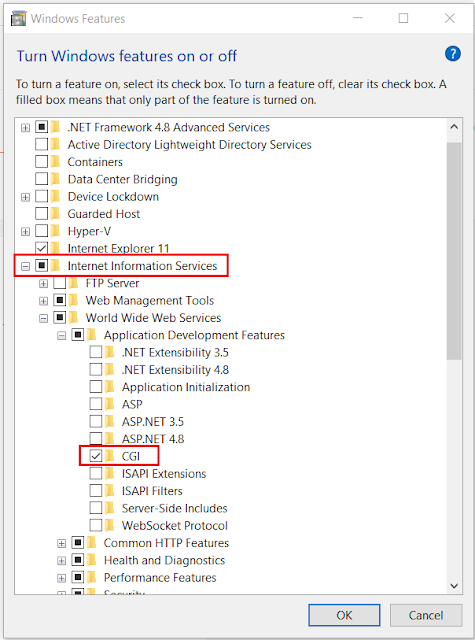
  • Open Control Panel >> Programs >> Turn Windows features on or off
  • Select Internet Information Services >> Expand and check CGI under World Wide Web Services -- Application Development Features


  • Test by opening http://localhost/ on your browser


Download and Install PHP

  • Extract PHP zip files to C:\PHP
  • Extract WinCache zip files to C:\PHP\ext
  • Open Control Panel >> System and Security >> System >> Advanced System Settings
  • On System Properties >> Go to Advanced tab and add a C:\PHP System Variable under Environment Variables

  • Open IIS Manager >> Select your machine under connections >> Open Handler Mappings

  • Add Module Mapping with the following details:
    • Request path: *.php
    • Module: FastCgiModule
    • Executable: C:\PHP\php-cgi.exe (location of php-cgi.exe within your PHP folder)

  • Add Default Document by going to Default Document >> Add >> add default.php and index.php

  • Create a PHP Info page to test
    • Create a phpinfo.php file on Notepad++ (run as Admin) with the following code: 
      <?php phpinfo(); ?>  
      ... and save inside C:\inetpub\wwwroot\


  • Open http://localhost/phpinfo.php on your browser and you should see this page


End. :)


Hope this helps.

Share:

How to install Active Directory on Windows 10

On your Desktop, Start >> Settings >> Apps >> Apps & Features >> Optional features >> Add feature

Look for RSAT: Active Directory Domain Services and Lightweight Directory Services Tool


If it tells you of any dependency, install that first. Here it shows I need to install RSAT: Server Manager first so let's do that

After installation you should have Active Directory apps installed on your machine


Hope this helps!

Share:

How to edit hosts file in Windows 10

 Might come in handy!

1. Run Notepad as Administrator (right click > Run as Admin)


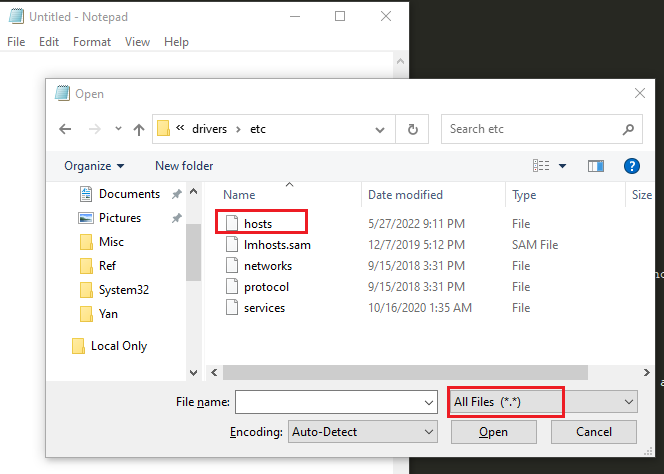
2. Open the location C:\Windows\System32\Drivers\etc, select All Files and hosts should appear on the list


3. Add the IP and hostname on the last line then save. In this case I added two hosts for surfandperf and google. You may read the commented part for more details.


That's it! Test by checking your browser if the hostname works.

Share:

How to create a "run as different user" shortcut for SQL Server

Problem: I always need to open SQL Server using my admin account but I don't want to keep on doing right click + run as different user, then type my admin username and super long admin password.

My solution? I created a shortcut that launches SQL Server using a different user. Now all I have to do Run "sqlserver" and the app will automatically open using my admin account. Saved me a lot of keystrokes! Hahaha


How:

Create a shortcut to SQL Server with the following target and place it in your User folder.

C:\Windows\System32\runas.exe /savecred /user:domain\surfandperf-admin "C:\Program Files (x86)\Microsoft SQL Server Management Studio 18\Common7\IDE\Ssms.exe"


In detail:

  1. Navigate to where your SQL Server executable file is.
    Usually it's inside C:\Program Files (x86)\Microsoft SQL Server Management Studio 18\Common7\IDE\ as ssms.exe
  2. Right click ssms.exe >> Send to >> Desktop (creates a shortcut)
  3. On your Desktop >> right click the SQL Server shortcut created >> go to Properties >> update the target to this:

    C:\Windows\System32\runas.exe /savecred /user:domain\surfandperf-admin "C:\Program Files (x86)\Microsoft SQL Server Management Studio 18\Common7\IDE\Ssms.exe"

    Basically I just prepended the target with the red text, making sure to replace the /user:domain\surfandperf-admin part with the domain and username I want to login with.

    I used /savecred to save the password for future launches


  4. Move to the shortcut to your user folder and rename it with whatever you want the shortcut name to be. Your user folder is inside C:\Users

  5. Now you can launch it using the run dialog (Win + R).


On first launch it will ask for a password, then it will remember it until you change your password.


Hope it works! I really just want fewer clicks and keystrokes for everything hehe.

Share:

How to add programs on Windows Startup

Because I always forget where to put my screensaver app so that it launches upon startup, here's a note to self:

On the run dialog, enter "shell:startup"

OR

Open %AppData% >> Roaming\Microsoft\Windows\Start Menu\Programs\Startup

Yup, that's it. :)

Share:

[PowerShell] Monitor active log files in Windows using type -wait command

Oh this is super handy. Say you have an active log file you want to monitor in real-time, simply run this command in Windows Powershell and see your logs update live on the terminal.


To demonstrate, in the screenshot above, I simply created a script that logs the current timestamp every two seconds on a logfile located at the Desktop. Then I used Powershell to monitor the updates on the terminal.

To do so, simply open Windows PowerShell on your machine and run the following command:

type -wait "logfile.txt"

:)
Share:

[Windows] How to open multiple apps at once using the run dialog

Basically what I want to do is launch several applications in one command. There are many options to do this. You can create a batch file that opens several applications then run it, or you can simply type a command from the run dialog that launches the apps you want.

I choose to do the latter because it's easier for me.

Here's the syntax. Suppose I want to launch Notepad, Calculator, and Task Manager in one go:


cmd /c start notepad & start calculator & start taskmgr
  • This command basically tells the computer to execute the program followed by the start command. 
  • The & allows you add multiple commands.
  • Remember to use the program's process name in order to launch them properly
Share: