A repository of notes about Performance Testing, Automation, RPA, and Web Design.

  • UiPath

    Show all posts related to UiPath

  • Windows

    Show all posts related to Windows

  • Web Design

    Show all posts related to Web Design

How to install UiPath extension on MS Edge

This is the easiest way for me. Since Microsoft Edge is Chromium-based, it supports the same extension used by your Google Chrome browser. 

So the UiPath Web Automation Chrome extension should work:
https://chrome.google.com/webstore/detail/uipath-web-automation/dkgencfabioofgdmhhjljpkbbchbikbh


What you should do is open the extension URL and install it straight on your Edge browser. With this you don't need to install through UiPath studio or even the command line anymore. This is all you need.
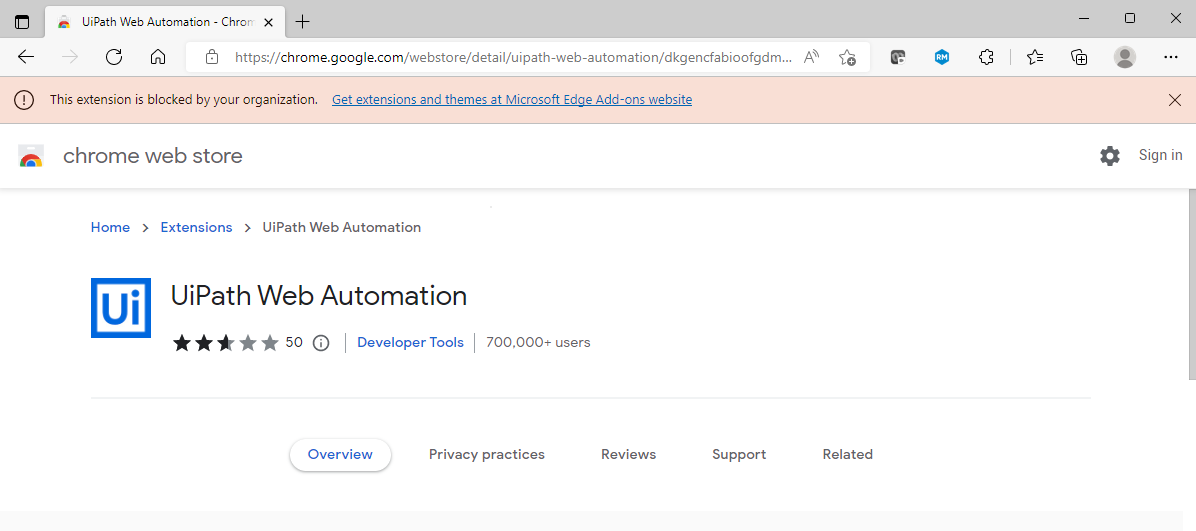

Issues may arise if you're working within an oganization which blocks installation of unverified extensions. In such cases, you have to reach out to your Service Desk or Desktop Engineering team and get the clearance needed to have the extension whitelisted.

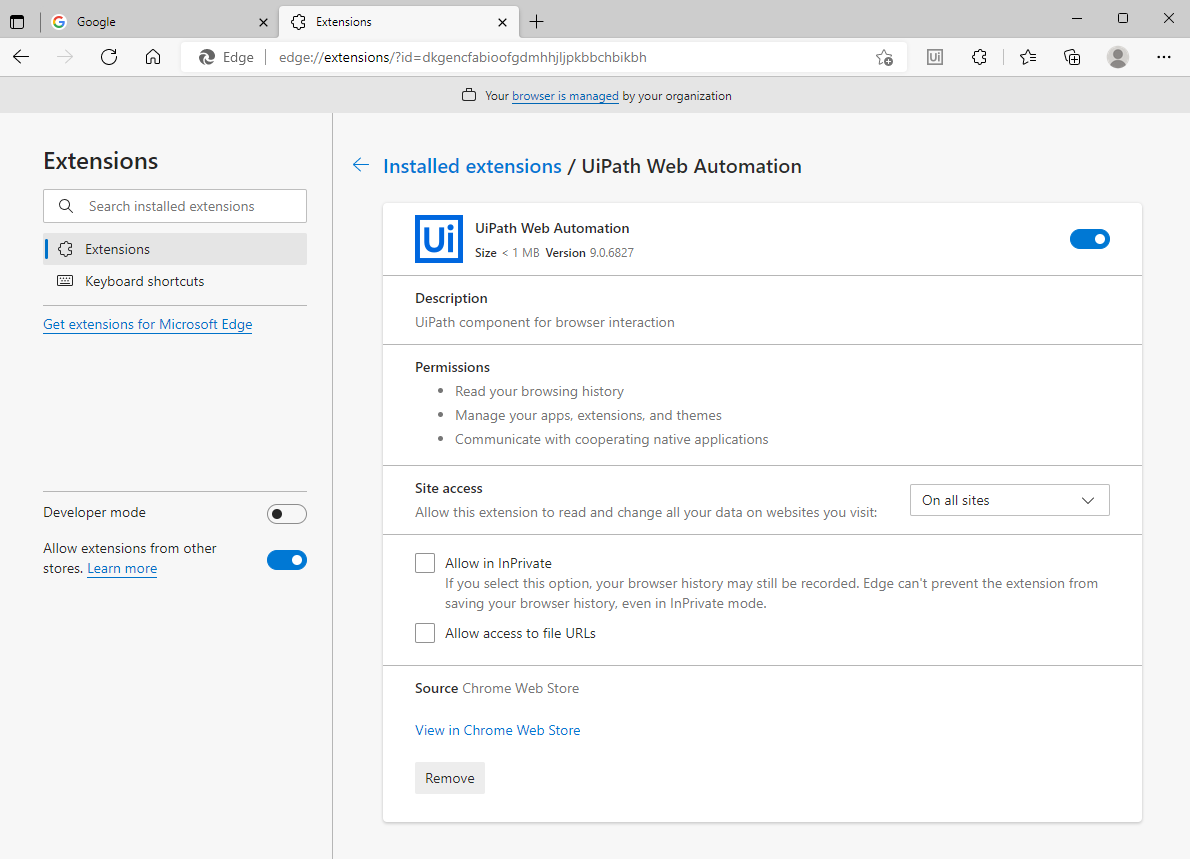
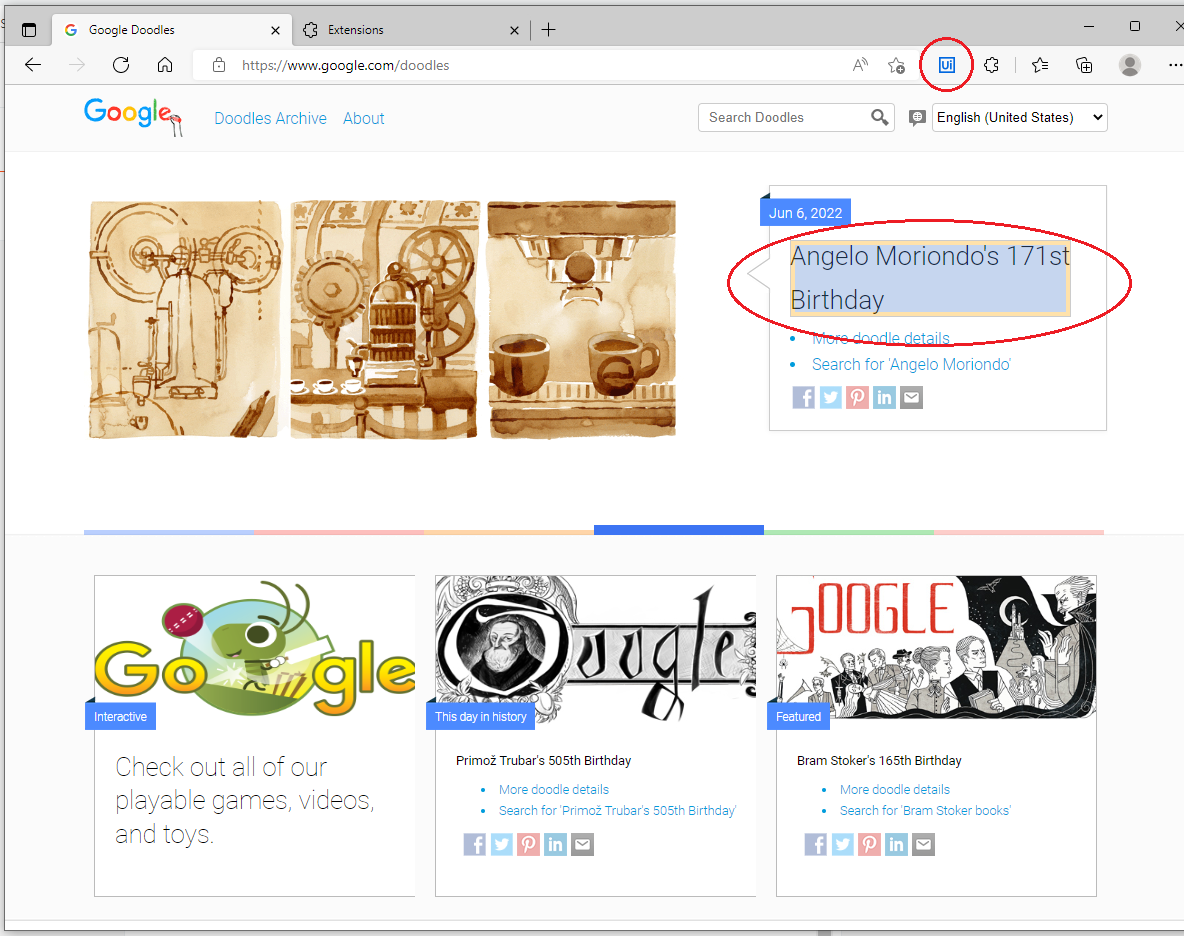
After installation, enable it on the browser and you should now be able to identify objects on MS Edge.

Hope his helps!

Share:

How to edit hosts file in Windows 10

 Might come in handy!

1. Run Notepad as Administrator (right click > Run as Admin)


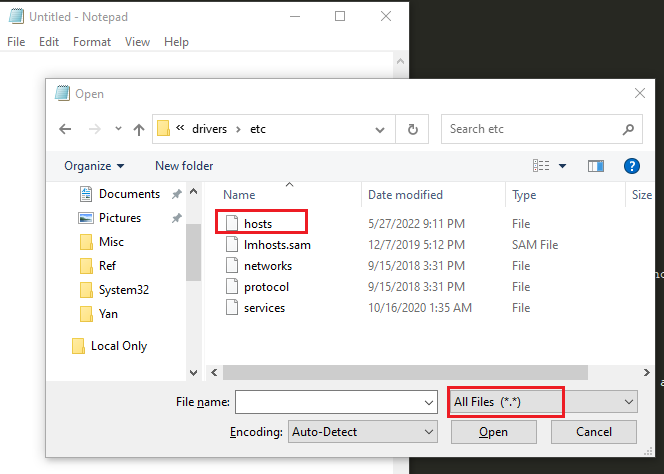
2. Open the location C:\Windows\System32\Drivers\etc, select All Files and hosts should appear on the list


3. Add the IP and hostname on the last line then save. In this case I added two hosts for surfandperf and google. You may read the commented part for more details.


That's it! Test by checking your browser if the hostname works.

Share:

[UiPath] How to launch a folder using Start Process activity

For when you want to launch a file folder for quick access after the robot runs.

Using the Start Process activity, put "explorer.exe" under Input FileName, and your desired folder path unde Arguments.


That's it!


Share:

How to setup Eggplant Functional Studio with RLM License Manager and TightVNC on Windows

Heya! Quick note on how to setup and install Eggplant Studio on Windows

What you need:

  1. Eggplant Functional installer
  2. Eggplant license file
  3. RLM installer 
  4. TightVNC remote desktop server

Step 1: Install Eggplant Functional

This one's pretty straightforward, just launch the installer and follow the next steps on there.


Step 2: Download your license file

If you don't have the license file you can download it from your Greenhouse account here http://greenhouse.eggplant.io


Download the key and you'll get a .lic file


Step 3: Setup RLM license manager

Extract the contents of your RLM download (it will be a zipped file)

Copy RLM_Server_Win to C:\Program Files

Paste your license file inside RLM_Server_Win

Run RLM as a service
  • Open CLI as Admin
  • Navigate to Program Files\RLM_Server_Win folder
     cd C:\Program Files\RLM_Server_Win
  • Run the following command
    rlm -install_service -dlog <server.log>


At this point, RLM service would've been created but it's still stopped.
To start the service: Open Task Manager >> Services tab >> Look for RLM and start it


Now that it's running, check by launching Eggplant Functional
It shouldn't ask for a license anymore


Step 4: Setup SUT

Install TightVNC on the machine/s you want to remotely control using Eggplant


Go back to Eggplant functional, create a new connection and test it out


End

Share:

How to write logs with newline using IO.write in Ajax Truclient


Suppose you want to create your own log file, here's how to do that in Ajax Truclient using the Evaluate Javascript action from the Toolbox.


So, drag it onto your script, make sure it's inside an Action and not in vuser_init or vuser_end. It didn't work when I initially placed it inside vuser_init and I'm not sure why.

To write to a text file, basically you just need to use IO.write in this format

IO.write(filename[string], input[string], append[boolean], charset[string]);

In my case, since I want to add a timestamp and a newline after every log, here's what I used:

var currentDate = new Date();
IO.write("C:\\Data\\Logs\\logs.txt",currentDate.toLocaleString() + " >>> ",true,"UTF-8");
IO.write("C:\\Data\\Logs\\logs.txt","hello",true,"UTF-8");
IO.write("C:\\Data\\Logs\\logs.txt","\r\n",true,"UTF-8");
  • On line 1 I created a date variable
  • On line 2 I used toLocaleString() method to output the date time in a readable format based on the machine's default locale. In my case it's en-US. You can add parameters to this to specify a different locale. Also, make sure to escape the slashes on the path.
  • On line 3 I appended my log message which says hello
  • On line 4 I appended a carriage return and a newline using \r\n because sometimes \n alone doesn't work

Running it 3x produces this output. Note that it automatically creates the file if it doesn't exist BUT it doesn't create directories.


ALTERNATIVELY, you can also use the Generic API Action from the toolbox to execute the IO.write function.


Just change the category to IO, method name to write, and put it your arguments. It's essentially the same as IO.write but with less coding involved hehe


Hope this helps!

Share:

How to use isRegExpMatch descriptor on Ajax Truclient

For example you are waiting for an object with a message like

"6 card(s) processed successfully."

where 6 could be any number. Here's how to use isRegExpMatch descriptor to identify that object.

First, change the ID method of the object to Descriptors and open the Descriptors Editor.


Then, add a text property (if it's not already there) and set the operator to isRegExpMatch.
When using isRegExpMatch, make sure the value type is set to JS.


Now for the value, I'm not an exepert at regex so I make use of online regex tools to generate the correct expression. I use regexr.com, set the regex engine to Javascript, paste the text I want to match on the textarea, and play around with capturing groups until it matches the entire text.


Here's the regex expression that perfectly matches the entire text:

/(.*) card\(s\) processed successfully./g

There are other variations to this, but this is what worked for me hehe.

When entering the regex value back on the descriptors editor, make sure to include the open and close slashes and the g modifier at the end (in red).

If you notice, the parentheses in (s) are also escaped (in green).

You can always test the descriptor by highlighting the object when it's visible on the page.

Here's another example:

Say you want to match an object with a name like this, where there's a random alphanumeric element in between the path...

/objects/ProfDetTransfer/rows/2g6efbadc10f2d3aaf4d06e1e2307as/attributes/TargetMatterRel.DisplayName

Same thing! Pull up a regex editor..
- replace the dynamic parts with a capturing group
- escape the forward slashes
- enclose the pattern in slashes
- add a g modifier

Here's the expression for that:

\/objects\/ProfDetTransfer\/rows\/(.*)\/attributes\/TargetMatterRel.DisplayName

Hope this helps!

Share:

[UIPath] "You have exceeded your profile storage space..." Error when running on Windows Server

Here's something we encountered recently that kept us from running a task smoothly. We migrated our scripts to a virtual server machine which is very different from where we developed the script (desktop). Our first struggle was getting rid of this pesky profile storage space error that kept on popping up midway into running a task.


Turns out when you run a robot, it extracts the robot package and downloads all its dependencies on a dedicated folder inside the local user profile directory. Usually here: C:\Users\<username>\.nuget\packages

Which means there's a copy of a robot script being created for every user who logs in and runs the same task. Imagine the waste of space.

We didn't realize this was a problem because this error doesn't come up on a regular desktop. Also, I'm pretty sure our desktop profile storage space isn't just 50MB haha. 


There are 2 ways to get rid of this error.

One is to configure UiPath.config to assign a dedicated folder where the robot extracts the packages to so it doesn't flood the user profile. The other is to increase or unset your local profile storage space. Let's discuss both:

Option 1

Thank God I ran into this forum post while looking for solutions!

  1. Open uipath.config on a text editor. It's usually inside
    C:\Program Files (x86)\UiPath\Studio\uipath.config

  2. Add this line inside <packageSettings>

    <add key="packagesInstallationFolder" value="D:\Data\NugetPackages\" />

    Replace the text in red with your preferred directory, somewhere away from your user profile directory, preferably in a different drive. I set ours inside D:\Data because sometimes regular accounts don't have access to C:\ drive on a server


  3. Save uipath.config and restart the robot service for the changes to take effect
    Open Task Manager >> Services >> Right click on UiRobotSvc and restart the service


  4. Run a robot task to test. The extracted files should now be saved at the packages installation folder you set up.
Option 2

For this option to work you need to have admin rights.

  1. Run gpedit.msc or open your Local Group Policy Editor
  2. Navigate to User Configuration >> Administrative Templates >> System >> User Profiles


  3. Open the property Limit Profile Size and adjust the max profile size or set it to Not Configured


  4. Apply to save changes and you're done.

Hope this helps! :)

Share: