A repository of notes about Performance Testing, Automation, RPA, and Web Design.

  • UiPath

    Show all posts related to UiPath

  • Windows

    Show all posts related to Windows

  • Web Design

    Show all posts related to Web Design

How to create a desktop shortcut for the NEW Microsoft Teams


I noticed that the NEW Microsoft Teams doesn’t let me create a desktop shortcut by right-clicking on it. And I needed to create a shortcut for the NEW Teams so that I can then create a run command shortcut for it.

No option to Send to Desktop OR Open File Location

What worked is to navigate to the Applications Folder and create a Teams shortcut from there.

Open the run command (Win+R) and open shell:AppsFolder


Look for the NEW Teams and drag to your Desktop or anywhere you please! 🙂


Hope this helps!

Share:

Boosting Body Positivity with Everyday Shapewear

In today’s world where everyone is keeping up to the so-called beauty standard as made by the society, the journey towards self-love and embracing your body is an important thing to take care of. Everyday individuals are seeking different ways to boost their confidence and embrace their natural beauty be it this marks on body or the whole shape of the body. Let’s help you out through all the body stereotypes through Popilush shapewear dresses. This article dives into the impact of these everyday bodywear shapewears have on the body positivity, by highlighting how the brand Popilush made its way to promote self-love.

Shapewear as a confidence booster

Shapewears have evolved throughout the decade for now and they are not something invented yesterday. These days shapewear­­s help to enhance the natural curves of the body. Popilush celebrates the diversity of its customers with utmost distinction. Unlike traditional norms it embraces inclusivity that every body shape and size is unique in its own.

https://www.popilush.com/products/built-in-shapewear-off-shoulder-dresses

Celebrating diversity

One of the most amazing features of Popilush brand is that it celebrates the diversity of everyone. Be it any kind of body shape or size medium to large and apple shaped to pear shaped, everyone is welcomed with love through the collection it provides that fit all sizes just like their strapless backless shapewear from one of their shapewear collections. This sends a powerful message that everyone is beautiful and unique in its own irrespective of their shape or size.

https://www.popilush.com/products/strapless-backless-u-plunge-thong-bodysuit

Comfort Revolution

Comfort the first thing one looks when buying anything be it jewelry, shoes or dress. When it comes to shapewears this comfort takes to another level as it is something to make you feel liberated and confident while flaunting your body curves rather than make you feel concerned about your bulky body. The garments at Popilush are seamless and the fabric used in them provides elasticity that makes it easy to glide on the body and enhance the overall shape.

https://www.popilush.com/products/built-in-shapewear-corset-style-maxi-dress-or-thong-bodysuit

Enhancing Self Expression

Self-expression plays a pivotal role when feeling confident. If a person is expressive enough of how and what they feel about them selves they know what will suit them as well. Popilush encourages individuality of everyone and their shapewears are a tool to express self-love rather than a means of conforming to societal expectations.

https://www.popilush.com/products/built-in-shapewear-ruched-long-sleeve-split-midi-dress

Cuts & Styles

All the shapewears at Popilush are not only made comfortable but also the style is not compromised in them. Their shaping dress are made with best tailors and stitched to perfection keeping in mind all the requirements a person needs in a shapewear making them feel confident in whatever they wear.

Conclusion

In a world where there are beauty standards so high it is important to love yourself and embrace body positivity. Popilush in these circumstances has emerged as a beacon of empowerment, challenging conventional norms surrounding shapewears and promoting self-love. Popilush is committed to inclusivity and will continue to boost confidence among women making them feel pride in their bodies.

Share:

[Fixed] Remote desktop taskbar hidden behind local taskbar in full screen


This happens a lot to me. There are times when I open a remote desktop and go fullscreen, the taskbar will be hidden behind the local taskbar and it’s annoying.

Here’s how to fix it:

Simply restart Windows Explorer within Task Manager. In detail:

  1. Right click on your taskbar
  2. Open Task Manager
  3. Under Processes, find Windows Explorer and right-click
  4. Click Restart


Your taskbar will reset then you can try opening remote desktop again. Your current open windows will not be affected by restarting Windows Explorer.

Problem variations:
  • Fixing remote desktop taskbar
  • How to fix remote desktop taskbar covered by local taskbar
  • Remote desktop taskbar hidden behind local taskbar
  • Remote desktop taskbar covered in full screen mode
  • Remote desktop taskbar issue
  • Problem with remote desktop taskbar

Hope this helps!

Share:

[PowerShell] ImportExcel error: Exception calling “Save” with “0” argument(s): “Error saving file


So, I have a PowerShell script that runs 4 different SQL queries whose results I want to save in an Excel file with 4 sheets. I’m utilizing dfinke’s ImportExcel module version 6.1.0 and I’m running into this error whenever it’s trying to write the datasets on the Excel file.

Exception calling "Save" with "0" argument(s): "Error saving file C:\Script\Output\Output.xlsx"

The output would be an excel file with just the first sheet created, the other 3 were not written.

Script looks like this


$outputFile = "C:\Script\Output\Output.xlsx";
$logfile = "C:\Script\logs.txt";

try {   
    $ts = (Get-Date).toString("yyyy/MM/dd HH:mm:ss")
    Write-Output "$ts >> Saving dataset 0 to $outputFile" >> $logfile
    $DataSet.Tables[0] | Export-Excel -Path $outputFile -worksheetname "Candidates_Emails Sent" -AutoSize -ExcludeProperty ItemArray, RowError, RowState, Table, HasErrors
    $DataSet.Tables[1] | Export-Excel -Path $outputFile -worksheetname "Candidates_No Emails Sent Yet" -AutoSize -ExcludeProperty ItemArray, RowError, RowState, Table, HasErrors
    $DataSet.Tables[2] | Export-Excel -Path $outputFile -worksheetname "Candidates_Logged In Per Day" -AutoSize -ExcludeProperty ItemArray, RowError, RowState, Table, HasErrors
    $DataSet.Tables[3] | Export-Excel -Path $outputFile -worksheetname "Candidates_Total Logins Per Day" -AutoSize -ExcludeProperty ItemArray, RowError, RowState, Table, HasErrors
} catch {
    $mergeErr = $_.Exception.Message
} finally {
    $ts = (Get-Date).toString("yyyy/MM/dd HH:mm:ss")
    Write-Output "$ts >> START MERGE ERROR |$mergeErr| END MERGE ERROR" >> $logfile
}

Troubleshooting

  • I know all 4 datasets are being pulled completely because I have logging info saying how many rows were retrieved
  • The error mesage only appears when I run the script on PowerGUI Script Editor, but when I schedule it on Task Scheduler, the error message disappears but the output is still erroneous
  • I know there are no issues with any of the datasets because I changed the writing order and it always writes the first sheet and ignores the rest

Solution

Failing to save the other sheets could be an access issue. Make sure the user account running the script has permissions to not only read and write but also MODIFY as this enables the user to edit the worksheet that was created, and add new sheets. To be sure, I’m giving full control.

Right click the output folder and click on Properties. On Security tab, add or edit the permissions of the affected user. Make sure o include Modify.

Now, you may still run into the same issue after doing this but what I found helpful, albeit a weird workaround, is to rename the sheets into something simpler. When it works, try running it again using the original sheet names you planned and see if it eliminates the issue.

See here I changed the sheet names to Sheet 1, 2, 3, and 4


try {   
    $ts = (Get-Date).toString("yyyy/MM/dd HH:mm:ss")
    Write-Output "$ts >> Saving dataset 0 to $outputFile" >> $logfile
    $DataSet.Tables[0] | Export-Excel -Path $outputFile -worksheetname "Sheet 1" -AutoSize -ExcludeProperty ItemArray, RowError, RowState, Table, HasErrors
    $DataSet.Tables[1] | Export-Excel -Path $outputFile -worksheetname "Sheet 2" -AutoSize -ExcludeProperty ItemArray, RowError, RowState, Table, HasErrors
    $DataSet.Tables[2] | Export-Excel -Path $outputFile -worksheetname "Sheet 3" -AutoSize -ExcludeProperty ItemArray, RowError, RowState, Table, HasErrors
    $DataSet.Tables[3] | Export-Excel -Path $outputFile -worksheetname "Sheet 4" -AutoSize -ExcludeProperty ItemArray, RowError, RowState, Table, HasErrors
} catch {
    $mergeErr = $_.Exception.Message
} finally {
    $ts = (Get-Date).toString("yyyy/MM/dd HH:mm:ss")
    Write-Output "$ts >> START MERGE ERROR |$mergeErr| END MERGE ERROR" >> $logfile
}

If changing the sheet names fixes it, try rolling back to your preferred sheet names and see if it works. For some reason, it worked for me.

Now for the error message appearing on PowerGUI Script Editor but not the Task Scheduler. I’ve learned to just ignore it since the script is already working fine. 🤣

Hope this helps!

Share:

[PowerShell] How to get timezone of remote machine

Cos I don’t have access to this machine and I needed to know the timezone its on…

Just fire up PowerShell and run the following command to fetch the timezone

Get-WMIObject -Class Win32_TimeZone -Computer ServerName

Just replace ServerName with the actual machine or server name

Similarly if you want to get the timezone of your local machine

Get-WMIObject -Class Win32_TimeZone

Hope this helps!

Share:

[Powershell] How to zip multiple files using 7-Zip (with password protection)

Here's another note to self...

I've been looking for a way to password protect a csv file but found it's not possible natively so one way to encrypt it is to zip it first and password protect the zip file.

Now I have multiple files I want to to zip using 7-Zip compression and again I've been googling my brains out looking for the correct search terms and eventually landed on this answer so here's how I applied it to my Powershell script...

First make sure you have 7-Zip installed on your computer. Then take note of the 7z.exe file 

Note that this example is for static files or individual files you can specify directly. This is not for dynamic files or all files in a folder. I'll get to that in time hehe


Here's the code that creates a random password, defines the csv files to zip, and creates a password protected zip file by passing the filenames as arguments

## -- Creating Random Password -- ##

[Reflection.Assembly]::LoadWithPartialName("System.Web")
$randomPassword = [System.Web.Security.Membership]::GeneratePassword(8,2)

## -- Files to zip -- ##

$csvFile = "D:\csvFile1.csv"
$csvFile2 = "D:\csvFile2.csv"

## -- Creating Zip File -- ##

$zipOutputFilePath = "D:\ZipOutputFile.zip"
$pathTo64Bit7Zip = "C:\Program Files\7-Zip\7z.exe"
$arguments = "a -tzip ""$ZipOutputFilePath"" ""$csvFile"" ""$csvFile2"" -mx9 -p$randomPassword"
$windowStyle = "Normal"
$p = Start-Process $pathTo64Bit7Zip -ArgumentList $arguments -Wait -PassThru -WindowStyle $windowStyle
$zipped = $ZipOutputFilePath

After execution your zip file should ask for a password before extracting.


That's it! 

Share:

How to Setup IIS and PHP on Windows 10 Desktop

Basically I followed this step-by-step from Microsoft, but for my own sake I'm writing my own so it's easier to find.

Setup IIS from Windows Control Panel

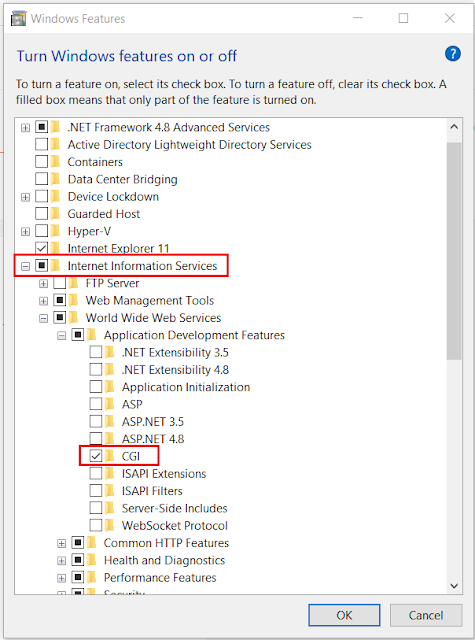
  • Open Control Panel >> Programs >> Turn Windows features on or off
  • Select Internet Information Services >> Expand and check CGI under World Wide Web Services -- Application Development Features


  • Test by opening http://localhost/ on your browser


Download and Install PHP

  • Extract PHP zip files to C:\PHP
  • Extract WinCache zip files to C:\PHP\ext
  • Open Control Panel >> System and Security >> System >> Advanced System Settings
  • On System Properties >> Go to Advanced tab and add a C:\PHP System Variable under Environment Variables

  • Open IIS Manager >> Select your machine under connections >> Open Handler Mappings

  • Add Module Mapping with the following details:
    • Request path: *.php
    • Module: FastCgiModule
    • Executable: C:\PHP\php-cgi.exe (location of php-cgi.exe within your PHP folder)

  • Add Default Document by going to Default Document >> Add >> add default.php and index.php

  • Create a PHP Info page to test
    • Create a phpinfo.php file on Notepad++ (run as Admin) with the following code: 
      <?php phpinfo(); ?>  
      ... and save inside C:\inetpub\wwwroot\


  • Open http://localhost/phpinfo.php on your browser and you should see this page


End. :)


Hope this helps.

Share: