A repository of notes about Performance Testing, Automation, RPA, and Web Design.

  • UiPath

    Show all posts related to UiPath

  • Windows

    Show all posts related to Windows

  • Web Design

    Show all posts related to Web Design

[PowerShell] ImportExcel error: Exception calling “Save” with “0” argument(s): “Error saving file


So, I have a PowerShell script that runs 4 different SQL queries whose results I want to save in an Excel file with 4 sheets. I’m utilizing dfinke’s ImportExcel module version 6.1.0 and I’m running into this error whenever it’s trying to write the datasets on the Excel file.

Exception calling "Save" with "0" argument(s): "Error saving file C:\Script\Output\Output.xlsx"

The output would be an excel file with just the first sheet created, the other 3 were not written.

Script looks like this


$outputFile = "C:\Script\Output\Output.xlsx";
$logfile = "C:\Script\logs.txt";

try {   
    $ts = (Get-Date).toString("yyyy/MM/dd HH:mm:ss")
    Write-Output "$ts >> Saving dataset 0 to $outputFile" >> $logfile
    $DataSet.Tables[0] | Export-Excel -Path $outputFile -worksheetname "Candidates_Emails Sent" -AutoSize -ExcludeProperty ItemArray, RowError, RowState, Table, HasErrors
    $DataSet.Tables[1] | Export-Excel -Path $outputFile -worksheetname "Candidates_No Emails Sent Yet" -AutoSize -ExcludeProperty ItemArray, RowError, RowState, Table, HasErrors
    $DataSet.Tables[2] | Export-Excel -Path $outputFile -worksheetname "Candidates_Logged In Per Day" -AutoSize -ExcludeProperty ItemArray, RowError, RowState, Table, HasErrors
    $DataSet.Tables[3] | Export-Excel -Path $outputFile -worksheetname "Candidates_Total Logins Per Day" -AutoSize -ExcludeProperty ItemArray, RowError, RowState, Table, HasErrors
} catch {
    $mergeErr = $_.Exception.Message
} finally {
    $ts = (Get-Date).toString("yyyy/MM/dd HH:mm:ss")
    Write-Output "$ts >> START MERGE ERROR |$mergeErr| END MERGE ERROR" >> $logfile
}

Troubleshooting

  • I know all 4 datasets are being pulled completely because I have logging info saying how many rows were retrieved
  • The error mesage only appears when I run the script on PowerGUI Script Editor, but when I schedule it on Task Scheduler, the error message disappears but the output is still erroneous
  • I know there are no issues with any of the datasets because I changed the writing order and it always writes the first sheet and ignores the rest

Solution

Failing to save the other sheets could be an access issue. Make sure the user account running the script has permissions to not only read and write but also MODIFY as this enables the user to edit the worksheet that was created, and add new sheets. To be sure, I’m giving full control.

Right click the output folder and click on Properties. On Security tab, add or edit the permissions of the affected user. Make sure o include Modify.

Now, you may still run into the same issue after doing this but what I found helpful, albeit a weird workaround, is to rename the sheets into something simpler. When it works, try running it again using the original sheet names you planned and see if it eliminates the issue.

See here I changed the sheet names to Sheet 1, 2, 3, and 4


try {   
    $ts = (Get-Date).toString("yyyy/MM/dd HH:mm:ss")
    Write-Output "$ts >> Saving dataset 0 to $outputFile" >> $logfile
    $DataSet.Tables[0] | Export-Excel -Path $outputFile -worksheetname "Sheet 1" -AutoSize -ExcludeProperty ItemArray, RowError, RowState, Table, HasErrors
    $DataSet.Tables[1] | Export-Excel -Path $outputFile -worksheetname "Sheet 2" -AutoSize -ExcludeProperty ItemArray, RowError, RowState, Table, HasErrors
    $DataSet.Tables[2] | Export-Excel -Path $outputFile -worksheetname "Sheet 3" -AutoSize -ExcludeProperty ItemArray, RowError, RowState, Table, HasErrors
    $DataSet.Tables[3] | Export-Excel -Path $outputFile -worksheetname "Sheet 4" -AutoSize -ExcludeProperty ItemArray, RowError, RowState, Table, HasErrors
} catch {
    $mergeErr = $_.Exception.Message
} finally {
    $ts = (Get-Date).toString("yyyy/MM/dd HH:mm:ss")
    Write-Output "$ts >> START MERGE ERROR |$mergeErr| END MERGE ERROR" >> $logfile
}

If changing the sheet names fixes it, try rolling back to your preferred sheet names and see if it works. For some reason, it worked for me.

Now for the error message appearing on PowerGUI Script Editor but not the Task Scheduler. I’ve learned to just ignore it since the script is already working fine. 🤣

Hope this helps!

Share:

[PowerShell] How to get timezone of remote machine

Cos I don’t have access to this machine and I needed to know the timezone its on…

Just fire up PowerShell and run the following command to fetch the timezone

Get-WMIObject -Class Win32_TimeZone -Computer ServerName

Just replace ServerName with the actual machine or server name

Similarly if you want to get the timezone of your local machine

Get-WMIObject -Class Win32_TimeZone

Hope this helps!

Share:

[Powershell] How to zip multiple files using 7-Zip (with password protection)

Here's another note to self...

I've been looking for a way to password protect a csv file but found it's not possible natively so one way to encrypt it is to zip it first and password protect the zip file.

Now I have multiple files I want to to zip using 7-Zip compression and again I've been googling my brains out looking for the correct search terms and eventually landed on this answer so here's how I applied it to my Powershell script...

First make sure you have 7-Zip installed on your computer. Then take note of the 7z.exe file 

Note that this example is for static files or individual files you can specify directly. This is not for dynamic files or all files in a folder. I'll get to that in time hehe


Here's the code that creates a random password, defines the csv files to zip, and creates a password protected zip file by passing the filenames as arguments

## -- Creating Random Password -- ##

[Reflection.Assembly]::LoadWithPartialName("System.Web")
$randomPassword = [System.Web.Security.Membership]::GeneratePassword(8,2)

## -- Files to zip -- ##

$csvFile = "D:\csvFile1.csv"
$csvFile2 = "D:\csvFile2.csv"

## -- Creating Zip File -- ##

$zipOutputFilePath = "D:\ZipOutputFile.zip"
$pathTo64Bit7Zip = "C:\Program Files\7-Zip\7z.exe"
$arguments = "a -tzip ""$ZipOutputFilePath"" ""$csvFile"" ""$csvFile2"" -mx9 -p$randomPassword"
$windowStyle = "Normal"
$p = Start-Process $pathTo64Bit7Zip -ArgumentList $arguments -Wait -PassThru -WindowStyle $windowStyle
$zipped = $ZipOutputFilePath

After execution your zip file should ask for a password before extracting.


That's it! 

Share:

How to Setup IIS and PHP on Windows 10 Desktop

Basically I followed this step-by-step from Microsoft, but for my own sake I'm writing my own so it's easier to find.

Setup IIS from Windows Control Panel

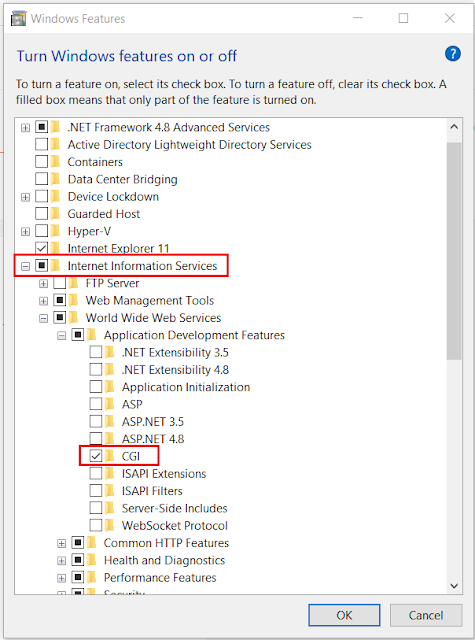
  • Open Control Panel >> Programs >> Turn Windows features on or off
  • Select Internet Information Services >> Expand and check CGI under World Wide Web Services -- Application Development Features


  • Test by opening http://localhost/ on your browser


Download and Install PHP

  • Extract PHP zip files to C:\PHP
  • Extract WinCache zip files to C:\PHP\ext
  • Open Control Panel >> System and Security >> System >> Advanced System Settings
  • On System Properties >> Go to Advanced tab and add a C:\PHP System Variable under Environment Variables

  • Open IIS Manager >> Select your machine under connections >> Open Handler Mappings

  • Add Module Mapping with the following details:
    • Request path: *.php
    • Module: FastCgiModule
    • Executable: C:\PHP\php-cgi.exe (location of php-cgi.exe within your PHP folder)

  • Add Default Document by going to Default Document >> Add >> add default.php and index.php

  • Create a PHP Info page to test
    • Create a phpinfo.php file on Notepad++ (run as Admin) with the following code: 
      <?php phpinfo(); ?>  
      ... and save inside C:\inetpub\wwwroot\


  • Open http://localhost/phpinfo.php on your browser and you should see this page


End. :)


Hope this helps.

Share:

[UiPath] How to use variable as delay duration (convert String to TimeSpan)

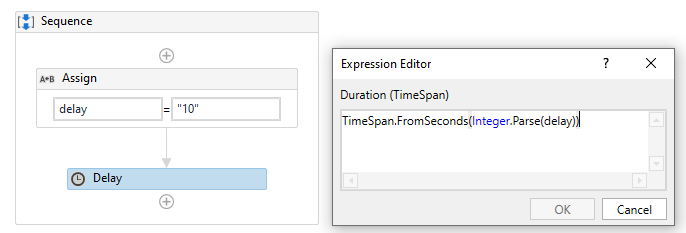
Say you want to use a variable as delay duration instead of hardcoding the time span (ie. 00:00:05), how do you convert a string variable into a proper duration variable?


Duration field accepts values with data type TimeSpan.
To convert a String to TimeSpan, use...

 TimeSpan.FromSeconds(Integer.Parse(delay))

...where delay is a string variable containing the delay duration in seconds. In this example, it's 10 seconds. 

That's it! Hope this helps! 

Share:

[UiPath, VB.net] How to split string into characters

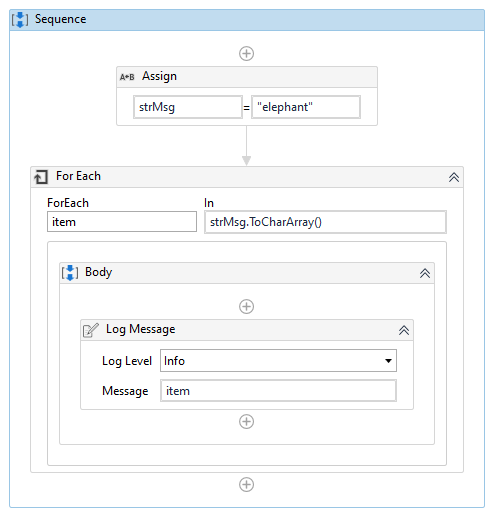
I was looking for ways to split a string into characters and found this .net string method that works perfectly.

Say you want to split the word elephant into individual characters and display it, just use the method ToCharArray() and it will be converted the way you want it!


Take note to change the TypeArgument of the For Each loop to System.Char

Alternatively, you may also access each character in the string by its index number.

"elephant"(0) returns "e"
"elephant"(1) returns "l"
"elephant"(2) returns "e"
...
"elephant"(7) returns "t"


You get the drill!

Share:

How to install Active Directory on Windows 10

On your Desktop, Start >> Settings >> Apps >> Apps & Features >> Optional features >> Add feature

Look for RSAT: Active Directory Domain Services and Lightweight Directory Services Tool


If it tells you of any dependency, install that first. Here it shows I need to install RSAT: Server Manager first so let's do that

After installation you should have Active Directory apps installed on your machine


Hope this helps!

Share: